Intro and use case #
Sometimes one may want to be able to use Docker from within another Docker container. This could be useful in various cases such as:
- For test-running a containerized application as part of a continuous integration (CI) pipeline - where the CI server (such as Jenkins) itself is containerized (this is what we'll setup in the final demonstration).
- For security/penetration testing scenarios where Docker access from within a container may be abused.
- When developing a Docker related utility.
- Or simply when just learning and hacking around. (:
By the end of this article we'll understand how this can be achieved through an example setup that deploys Jenkins in a container and grants it the appropriate permissions to properly run Docker commands from inside!
Note: This could be considered a slightly advanced topic, so I assume basic familiarity with Linux permissions, Docker and Docker-compose.
Docker architecture review #
Before getting started, let's refresh ourselves on some of Docker's architecture (you can find a nice diagram in the official documentation) and some terminology...
- The Docker client (commonly our
dockerCLI program) is the standard way we interact with Docker's engine. Docker itself runs as a daemon (server) on the Docker host (this host is often the same machine the client runs on, but in theory can be a remote machine too). - The Docker host exposes the Docker daemon's REST API.
- The way the Docker client communicates with the Docker host is via the Docker socket.
The Docker socket #
A Socket, on a Unix system, acts as an endpoint allowing communication between two processes on a host.
The Docker socket is located in /var/run/docker.sock. It enables a Docker client to communicate with the Docker daemon on the Docker host via its API.
Communicating with the socket #
Let's briefly dive one layer deeper and try reach the API server directly. Instead of using the standard CLI and running docker container ls, let's use curl:
1curl --unix-socket /var/run/docker.sock http://api/containers/json | jq
Note: I piped
curl's output intojqto prettify the output. You can get jq here.
The Docker daemon should return some JSON similar to this (output truncated):
 1[
 2  {
 3    "Id": "3c70064d5b8b85688fef7b0eb4d8573967faa5a349b8c9e94d9a175aaf85a59f",
 4    "Names": [
 5      "/pensive_lewin"
 6    ],
 7    "Image": "nginx:alpine",
 8    "ImageID": "sha256:51696c87e77e4ff7a53af9be837f35d4eacdb47b4ca83ba5fd5e4b5101d98502",
 9    "Command": "/docker-entrypoint.sh nginx -g 'daemon off;'",
10    "Created": 1650493607,
11    "Ports": [
12      {
13        "PrivatePort": 80,
14        "Type": "tcp"
15      }
16    ],
17    "Labels": {
18      ...
19
Here we can see I have an Nginx Alpine container (named pensive_lewin) running. Cool!
The socket's permissions #
Running ls -l /var/run/docker.sock will allow us to see its permissions, owner and group:
srw-rw---- 1 root docker 0 Apr 18 17:17 /var/run/docker.sock
We can see that:
- The file type is
s- it's a Unix socket. - Its permissions are
rw-(read & write) for the owner (root) - Its permissions are
rw-(read & write) for the group (docker)
A common practice when setting up Docker is to grant our local user permissions to run docker without sudo, this is achieved by adding our local user to the group docker (sudo usermod -a -G docker $USER)... Now that we're familiar with the Docker socket and the group it belongs to, the usermod command above should make more sense to you. ;)
We'll revisit these permissions when we discuss hardening of the Docker image we'll create.
Using Docker from within a container #
To use Docker from within a container we need two things:
- A Docker client - such as the standard
dockerCLI - which can be installed normally. - A way to reach the Docker host... Normally this is done via the Docker socket (as described above). However, since the container is already running in our Docker host we perform a little "hack" in which we mount the Docker socket (via a Docker volume) into our container.
Proof of concept #
Let's put this all together and give it a quick test:
- Run a container locally, mounted with the Docker socket:
1docker run --rm -itv /var/run/docker.sock:/var/run/docker.sock --name docker-sock-test debian - Install the Docker client (inside the container):
1apt update && apt install -y curl 2curl -fsSL https://get.docker.com | sh - Try listing containers using the Docker client (from inside the container):
In the output, our container (named docker-sock-test) should be able to see itself:1docker psCONTAINER ID IMAGE COMMAND CREATED STATUS PORTS NAMES 09094c778449 debian "bash" About a minute ago Up About a minute docker-sock-test
Visual explanation #
This configuration and example described above can be visualized with the following diagram:
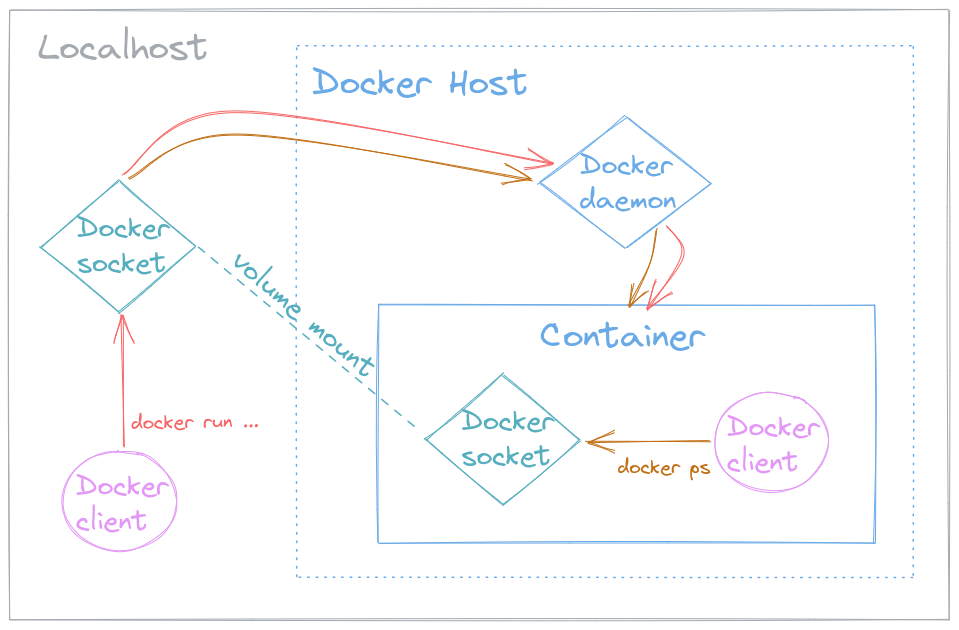
Legend:
- The Docker client (pink) is the
dockerCLI which you should be familiar with. It was installed separately both on the Localhost (grey) and in the Container (blue). - The Localhost's Docker socket (teal) is mounted into the container. This links the container to the Docker host and exposes its daemon.
- The Container was created using the Localhost's Docker client, via the
docker run...command (red). - The Container can see itself using the Container's Docker client via the
docker pscommand (orange).
Building the Docker image #
A classic example (from the DevOps field) would be to deploy a Jenkins container which has Docker capabilities. Let's start by creating its Dockerfile...
-
We'll base our image on the official Jenkins Docker image.
-
This image runs by default with user jenkins - a non-root user (and not in the sudo group), so in order to install the Docker client we'll escalate to user root.
-
We append the user jenkins to the group docker, in order for them to have permissions to access the Docker socket (as discussed earlier).
-
This step has a subtle concept to do with Linux permissions, which is worth emphasizing...
The Docker socket on the host is associated with the docker group, but there is no guarantee that this is the same docker group in the image (the group created by step 2's script, and used in step 3, above). Linux groups are identified by numeric IDs - so for the groups to match, both must have the same group ID.
The host's docker group ID can be looked up with
getent group docker(mine was998, yours could differ). We'll pass it as a build argument and use it to set the docker group ID inside the image. -
Finally, to re-harden the image, we'll switch back to the user jenkins.
Here is the actual Dockerfile (with each of the above steps indicated by a comment):
# step 1:
FROM jenkins/jenkins:lts
# step 2:
USER root
RUN  curl -fsSL https://get.docker.com | sh
# step 3:
RUN  usermod -aG docker jenkins
# step 4:
ARG  HOST_DOCKER_GID
RUN  groupmod -g $HOST_DOCKER_GID docker
# step 5:
USER jenkins
Running the container #
Due to the nature of the configuration and the dynamic nature of group IDs (differing per each device) I find it simplest to deploy (and build) using Docker-compose.
Here is the docker-compose.yaml file:
 1services:
 2  jenkins:
 3    hostname: jenkins
 4    build:
 5      context: .
 6      args:
 7        HOST_DOCKER_GID: 998  # check *your* docker group id with: `getent group docker`
 8    ports:
 9    - 8080:8080
10    volumes:
11    - /var/run/docker.sock:/var/run/docker.sock
12    - jenkins_home:/var/jenkins_home
13
14volumes:
15  jenkins_home:
Notes:
Make sure to check (and set) your host's docker group ID.
This Docker-compose file additionally:
- Maps Jenkins' port to host port
8080.- Creates/uses the named volume
jenkins_hometo persist any Jenkins data.
Testing #
In order to test the setup, one can:
-
Spin up the Jenkins service with:
1docker-compose up -d --build -
Login to a shell in the Jenkins container:
1docker-compose exec jenkins bash -
In the container, let's make sure we:
- Are not running as root - by looking at the CLI prompt, or by running
whoami. - Have access to the Docker socket - by running any Docker command (such as
docker container ls) with the Docker client.
- Are not running as root - by looking at the CLI prompt, or by running
Note: In case of any permission issues, troubleshoot with the
getent group dockercommand on both the host and in the container...
Conclusion #
Hopefully this article managed to clarify a thing or two about the Docker socket and how it fits into Docker's architecture, how its permissions are setup and how it is utilized by a Docker client.
Equipped with said knowledge, we created a Dockerfile for a Jenkins-with-Docker image and saw how to deploy it with the appropriate permissions configuration for our host.